Setting up the pieces…
Help guide
Everything ChessCareer does, in plain words. Type what you want to do, for example "add a son" or "pay entry fee". The search box understands English words.
Can't sign in? Send feedback needs you to be signed in. If you cannot sign in, email nshevade@gmail.com and say what you see on the screen.
Start here
What ChessCareer is
For: Everyone
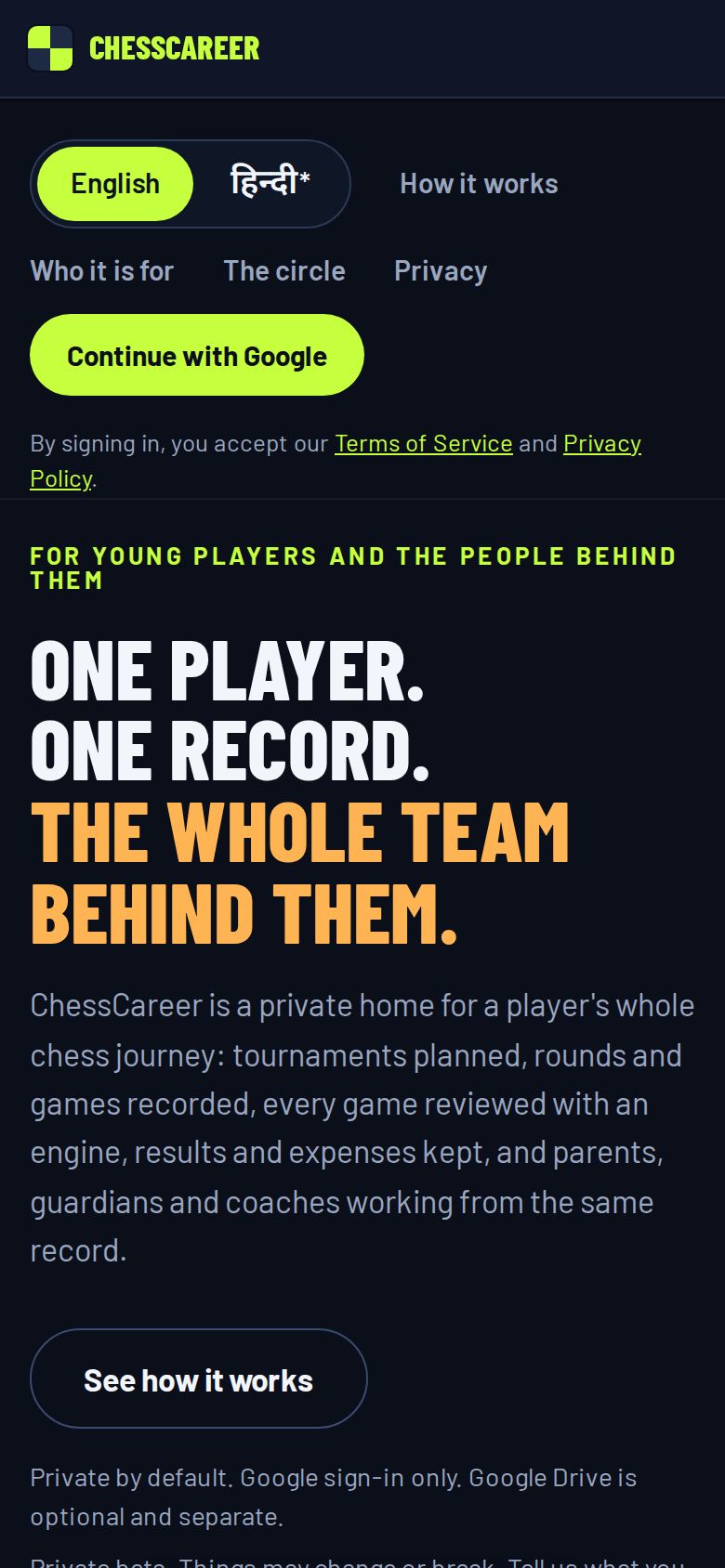
ChessCareer is one place for a chess player and the people behind them. It keeps tournaments, results, games, expenses, files and progress together, so a parent, a coach and the player all look at the same record. One player. One record. The whole team behind them.
- Tournaments: plan them, record rounds and results, keep the entry fee, prizes and costs.
- Games: bring in games from files, Lichess and Chess.com, or record a game on the board, then review it with the Analyst.
- Progress: ratings in Standard, Rapid and Blitz, and how results are going.
- Circle: the people and profiles connected to you, and Coach chat.
- Money: what was earned, what was spent and the net, with refunds.
ChessCareer is in Beta. It works and it is still changing. Keep your own copies of anything important, such as your PGN files and tournament documents. Only classical (standard), rapid and blitz chess are kept. Chess960 and Freestyle are always left out.
Quick start by who you are
For: Everyone
Pick the line that matches you. Each step links to the full topic.
- I am a parent or guardian. Add your child's profile, then add a tournament, and use Today on tournament days to record results, expenses, prizes and photos.
- I am a player with my own account. Sign in, follow the first steps, confirm your FIDE ID, then bring in your games.
- I am a coach. Accept the invitation you were sent (roles), then open Coach chat and Progress.
- I follow a player I admire. Create a study profile and study their games.
- I only want to look. A Viewer sees tournaments and games, and nothing private.
Open it like an app on your device
For: Everyone
ChessCareer runs in your browser and is built to work on devices up to about five years old. On an iPhone that means iOS 16.4 or later (iPhone 8 and newer). You do not install anything from a store.
- Open ChessCareer in your browser and sign in.
- Use your browser's Add to Home Screen option. On an iPhone or iPad it is in the Share menu. On other devices look in the browser menu for Install app or Add to Home screen.
- Open it from the new icon like any other app.
Pages you opened while signed in are kept on the device, so they open even with a weak signal. They are removed when you sign out.
Sign in, sign out and accept the terms
For: Everyone
- On the front page tap Log in, then choose Continue with Google and pick your email account on the next screen. There is no new password to remember. If Google does not accept your email yet, set that up with Google first. You can also use Continue with Lichess if you have a Lichess account.
- Signing in means you accept the Terms of Service and the Privacy Policy. Both are linked under the button and in the footer of every page.
- You stay signed in for up to 7 days on that device.
- To leave, open Menu and choose Sign out. Do this on a shared device.
ChessCareer sees only your name, your email address and an account identifier from Google. It never sees your password. Other ways to sign in may be added later and will show the same notice.
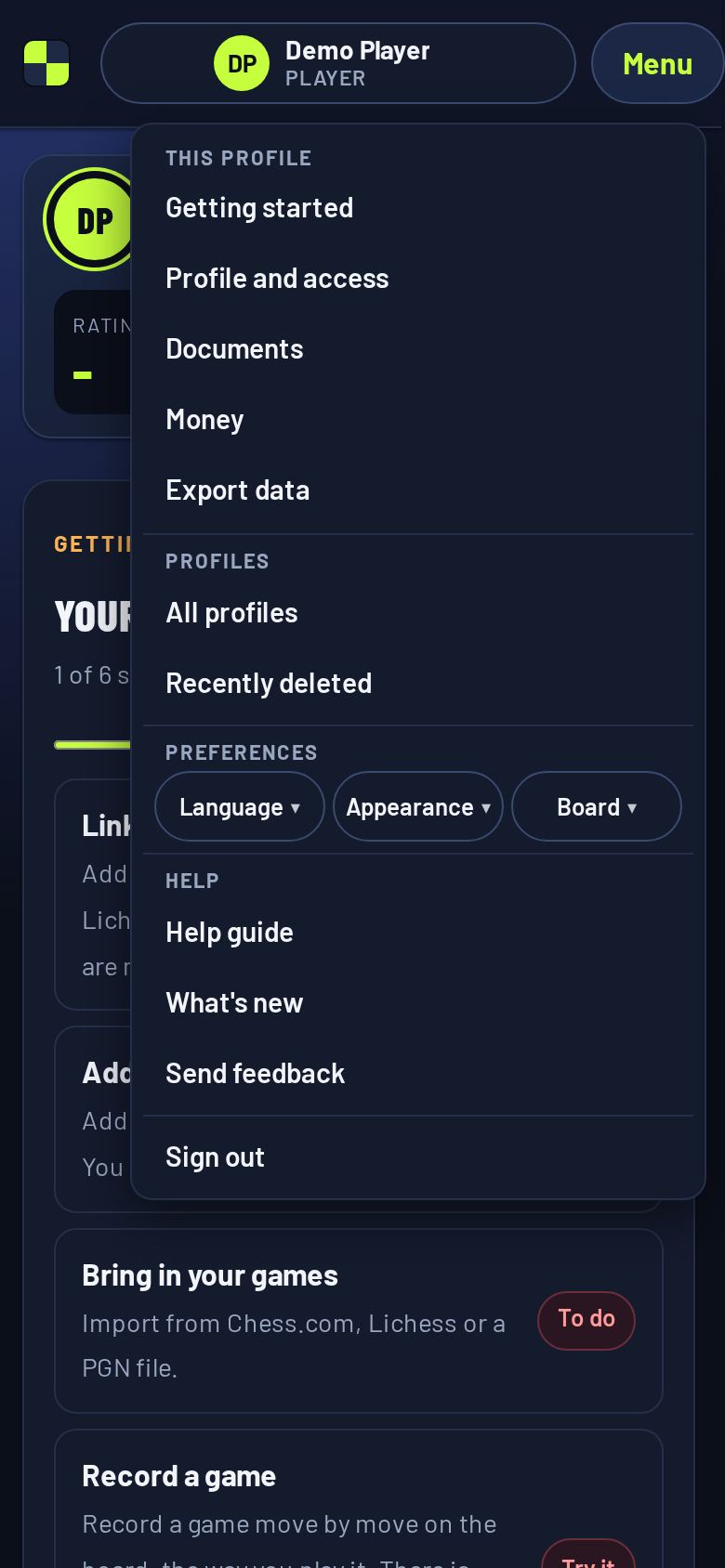
The Menu at a glance
For: Everyone
The Menu button sits at the top right of every page (at the bottom of the left side on a wide screen). It is split into short sections, so nothing needs scrolling.
- This profile
- Getting started, Profile and access, Documents, Money and Export data. Which of these you see depends on your role and on whether you have a profile open.
- Profiles
- All profiles, and Recently deleted.
- Preferences
- Language, Appearance and Board. See Language, Light or Dark and board look.
- Help
- The Help guide (this page), What's new and Send feedback. The Feedback inbox shows here for the developer only.
- Sign out
- Always the last line.
A number on the Menu button means something inside it is new.
Language, Light or Dark, and board look
For: Everyone
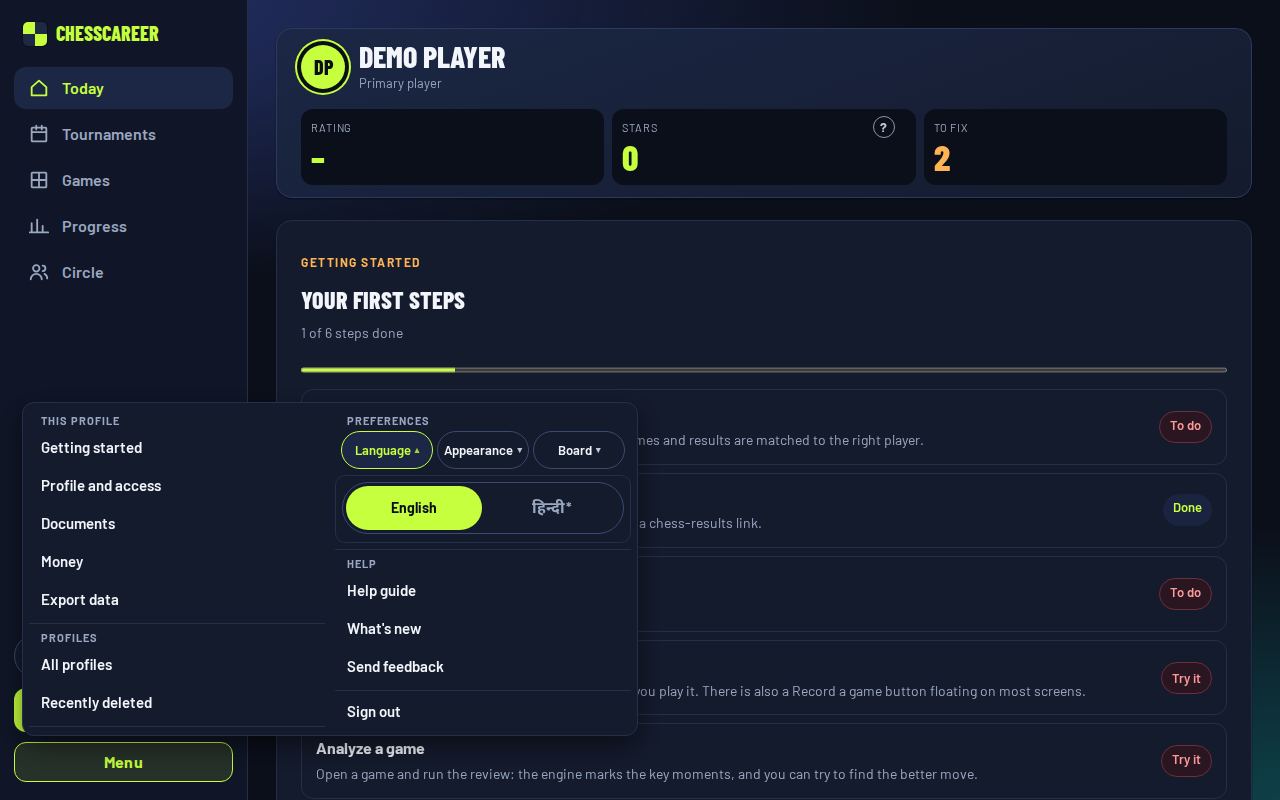
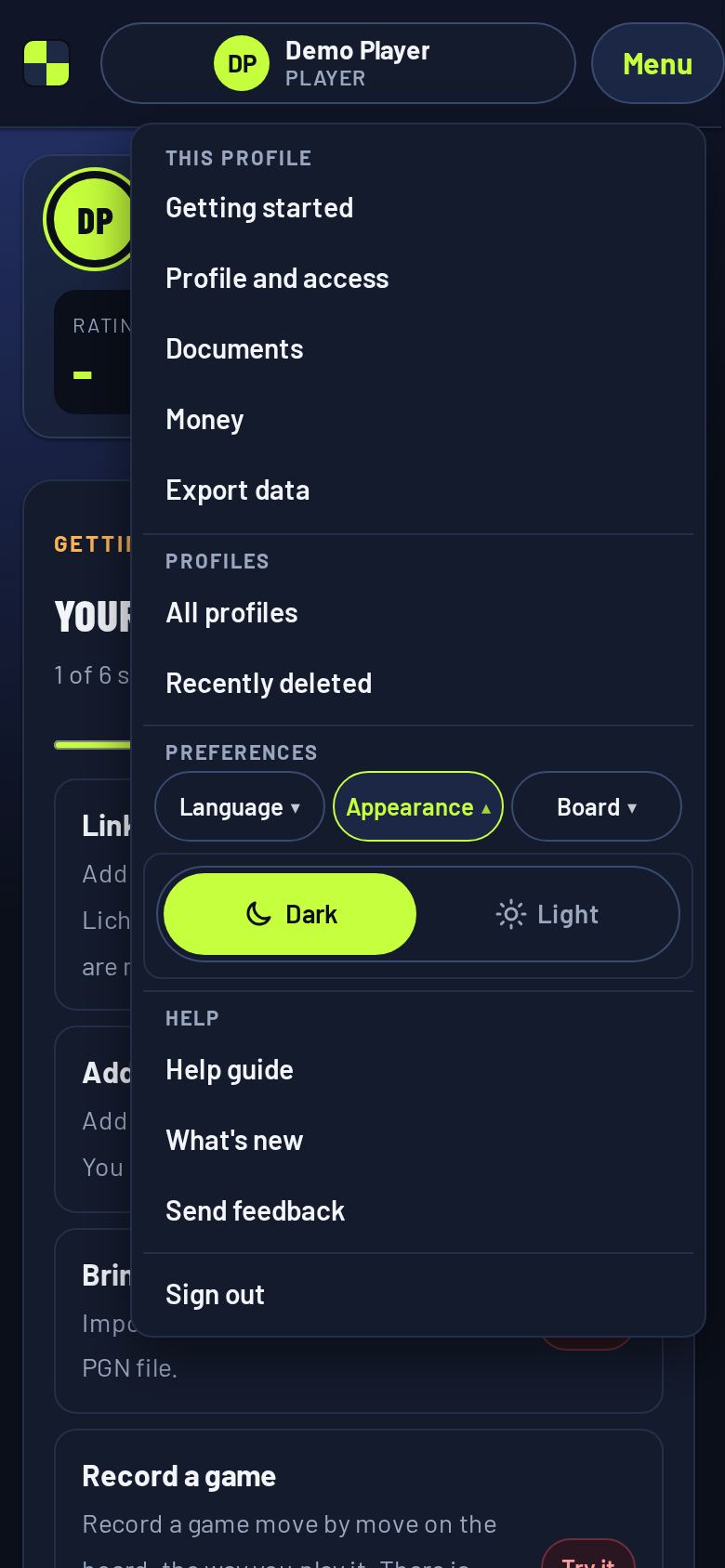
Open Menu → Preferences. It has three small buttons: Language, Appearance and Board. Hover over one with a mouse, or tap it on a touch device, and its choices open underneath. Each choice is saved on your account (the board look is kept on the device) and follows you.
- Language: English or Hindi. Hindi is in beta: the wording is a draft. If anything is unclear, switch to English. The Privacy Policy and Terms are English only.
- Appearance: Dark (the default) or Light.
- Board: the look of every board (Slate or Green) and whether boards make sounds for moves, captures, castling, check and promotion.
The first-steps checklist
For: Players, parents
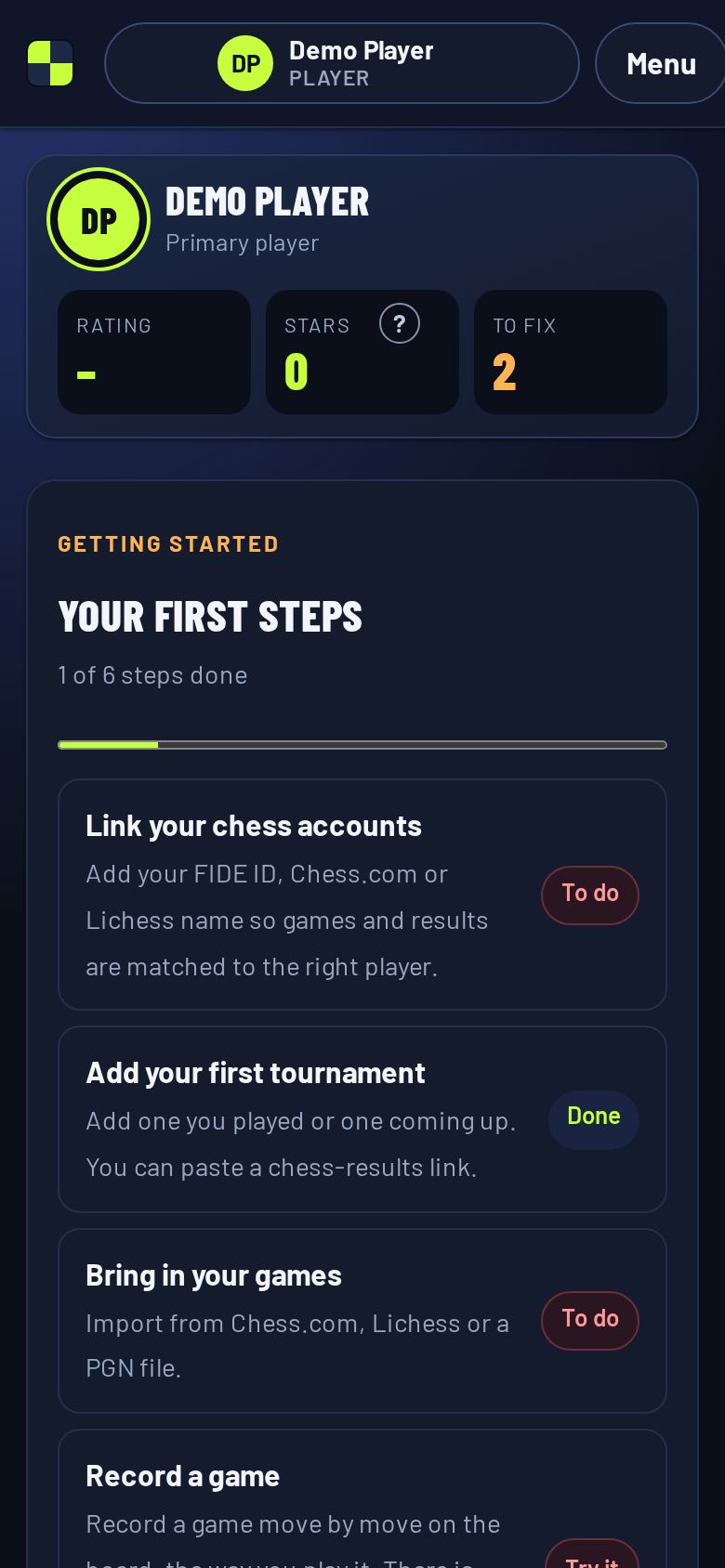
Menu → Getting started is a short list that ticks itself as you go. You can hide it and open it again from the Menu whenever you like.
- Connect your accounts (FIDE ID, Chess.com, Lichess).
- Add your first tournament.
- Add games.
- Optional: bring in earlier tournaments from chess-results.
- Try it: record a game on the board.
- Try it: analyze a game.
The fields check what you type straight away: a FIDE ID, a Chess.com or Lichess username and a tournament end date all tell you at once if something looks wrong.
Profiles and people
Roles: who can do what
For: Everyone
Every profile shows your role at the top right of each page, beside the profile name.
| Role | What it can do |
|---|---|
| Owner / Player / Parent or guardian | Full editing: tournaments, games, money, documents, sharing. A parent or guardian creates a child's profile and has write access. |
| Coach | Read only. Sees tournaments, rounds and results, games, Progress, Circle and the profile. Can use Coach chat. Does not see awards, prizes, expenses, documents, photos or Money. |
| Viewer | Read only, and less than a Coach: tournaments and games only. |
| Study | A profile that follows a public player. Games, Tournaments and Profile only. See Study profiles. |
Switch between profiles
For: Everyone
Use the profile box at the top right, or Menu → All profiles. Profiles are grouped as:
- Me: your own profile.
- Children I look after: profiles where you are the parent, guardian or owner.
- Players I coach and Players I follow.
- Study profiles.
Coaches you work with are listed as My coach and My student, with a count of what is new. Switching lands on the other profile's Today page.
Create your own career profile
For: Players
- From the home page choose to create your career profile (one per account).
- Enter the name. FIDE, AICF and state IDs and a year of birth are optional. The app never asks for an exact date of birth, a home address or a phone number.
- Save. The profile opens on Today.
Every data-entry form has a Cancel button. It also clears whatever the form had saved.
Add a child's profile and hand it over later
For: Parents, guardians
- On the home page choose Add a child's profile. You can add several children.
- Enter the child's details. You become Parent or guardian with full editing.
- When the child is ready for their own sign-in, open Profile and access → Who can see this, enter the child's own email address and create the handover invitation.
- The child accepts it with that email account and becomes the player. Parents keep write access until the child removes it.
While the child's seat is empty you cannot remove yourself from the profile, because nobody could open it then. Anyone under 18 may use ChessCareer only with a parent's or guardian's consent.
Confirm your FIDE ID and link Chess.com and Lichess
For: Players, parents
Open Menu → Profile and access.
- FIDE ID: before it is confirmed on a player's own profile, ChessCareer compares the public FIDE page with the profile name and birth year. A close match (70% or more) is accepted. If it is a poor match you can still choose Use it anyway, but you must tick a box, and the choice is written to a log with who made it and when.
- Chess.com and Lichess: add your usernames so your online games can be fetched. These links do not prove you control the accounts.
- One FIDE ID, one profile: the same FIDE ID cannot be followed twice as a study profile.
Tournaments and money
Today: your starting page
For: Everyone
Today is the first tab of every profile. It changes with the moment: before a tournament, on a tournament day and afterwards.
- Reminders. The entry fee reminder appears from 2 days before the fee's last date, until you record an Entry fee expense. Another reminder appears 2 days and 1 day before a tournament starts.
- Ratings. FIDE first (Standard, Rapid, Blitz), then Chess.com, then Lichess.
- Things to fix. One list gathering what needs attention across the profile: missing rounds, results that disagree, games waiting for your choice and brochure problems. Tap the number or the chip to open it. It shows Nothing to fix when all is well.
- Coach and family card, to invite a coach or a parent.
Record on the day: result, expense, prize, photo
For: Parents, players
On a tournament day Today shows one panel with four big actions: Result, Expense, Cash prize and Photo.
- Choose the action and fill in the short form.
- Save. The item is kept on your device first, so a weak signal loses nothing.
- It is sent to ChessCareer when the device is back online. Recorded so far shows how many are saved, waiting or failed, and the latest three.
The Tournaments tab
For: Everyone
Two views sit side by side:
- Pipeline: four columns from left to right: Plan (upcoming), Play (ongoing), Wrap up and Done (completed). A card shows a chip when something needs fixing.
- List and edit: one filtered list with Open, Edit and Delete icons. After you save an edit you return to the same filters.
Each tournament gets a number such as TID-15, the 15th tournament on that profile. Its status is Planned, Ongoing, Completed or Cancelled. Back always returns you to the list you came from.
Add a tournament
For: Players, parents
- On Tournaments choose to add a tournament.
- Either type the details, or paste a chess-results link to fill them in. Rounds can be fetched day by day.
- Check the name, dates, place, format (classical, rapid or blitz) and the number of rounds. The number of rounds is set here and the result's "out of" follows it.
- Save.
If the dates overlap another tournament of the same player, the save stops and names the clash. You may choose to keep both.
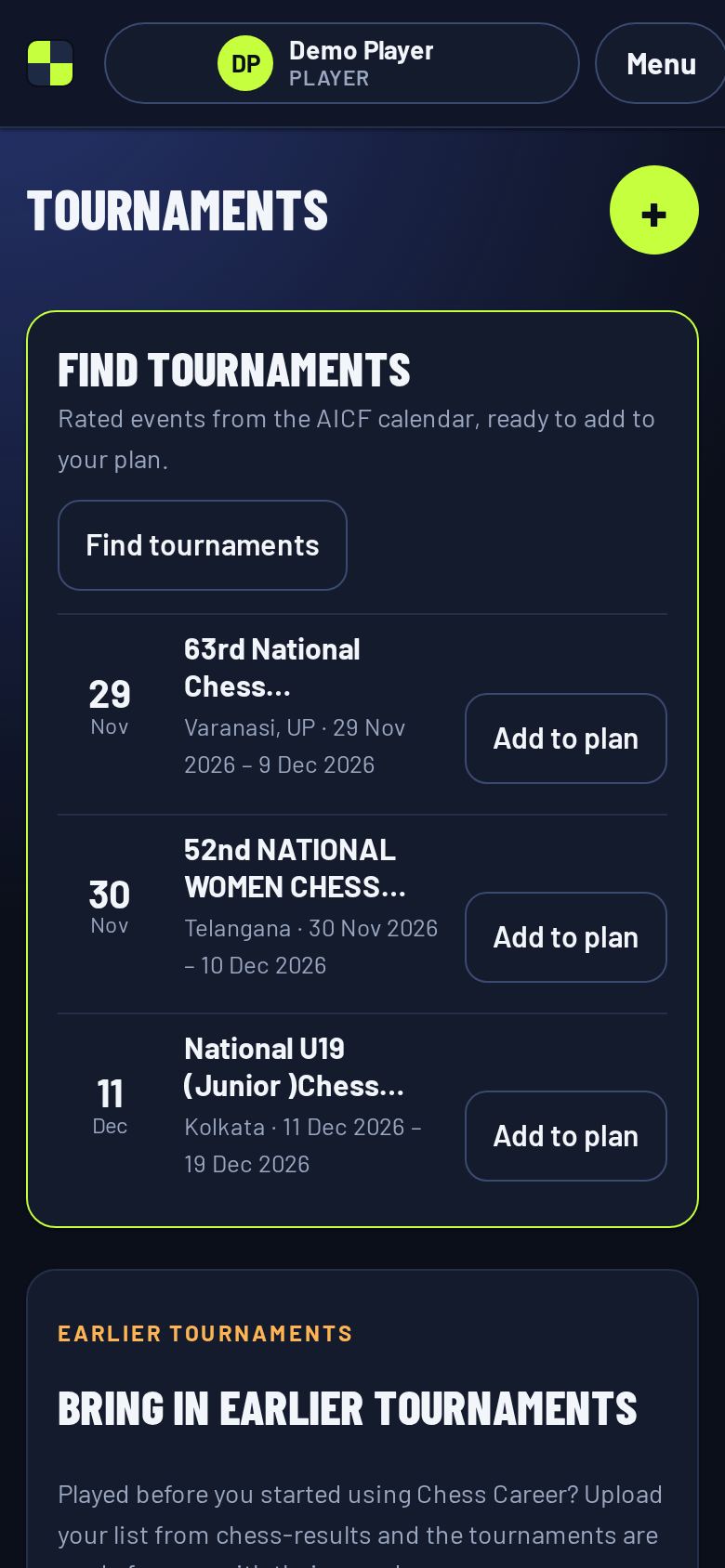
Find tournaments (AICF calendar)
For: Players, parents
On Tournaments, Find tournaments lists rated tournaments from the AICF calendar. Nationals and state championships show from anywhere in India. Other tournaments are filtered by the places you pick.
- Open Find tournaments and choose your places.
- Open an event to see its dates, place and brochure.
- Add it to your plan. It appears in the Plan column.
Bring in earlier tournaments
For: Players
- Open the card Bring in earlier tournaments on the Tournaments page (or the Getting started list).
- ChessCareer reads your tournament list from chess-results. Tick the ones you want and check them.
- Add the ticked ones. Rounds are fetched one tournament at a time.
- Changed your mind? Undo removes the whole batch.
Tournaments that chess-results no longer lists are added with the score only. A tournament that looks like one you already have is shown side by side for you to decide.
Rounds and results
For: Players, parents
Open a tournament and use Quick add round. Enter the round, the colour you had (White or Black), the opponent and the result. Points are worked out automatically from the result, and you can override them if the tournament scored differently.
- The tournament score is the total of the rounds you recorded.
- When a tournament is over, you can fetch its results from chess-results. Fetching opens at 7 p.m. India time on the tournament's last day.
- A chess-results entry whose FIDE ID does not match the profile is not imported, and the mismatch is shown.
Tournament recap: see it and share it
For: Players, parents
- Open a tournament that is finished (or past its last day) and has at least one round played. The recap card sits on the tournament page: the player and tournament name, points and final rank, wins, draws and losses, the stars earned in that tournament, and any prizes or awards.
- Games not recorded. If some rounds have no game attached, the card says so in one line, with an Add games link. This is the only place that says so.
- Cancelled, or you did not attend: the card says exactly that. It is not shareable.
Share the recap opens a small studio:
- The player's name is on the picture by default. Turn it off with one tap.
- Choose a photo: none, a photo kept in this tournament, or one from your device. A device photo is used only for this picture. It is not saved in ChessCareer and does not count toward your 200 MB.
- Press Share or save the picture. Your device offers where to send it, or saves the picture.
The picture is made on demand and carries the ChessCareer name. The FIDE ID is never on it. ChessCareer posts nothing anywhere: the picture goes only where you send it.
Integrity check errors and Fix now
For: Players, parents
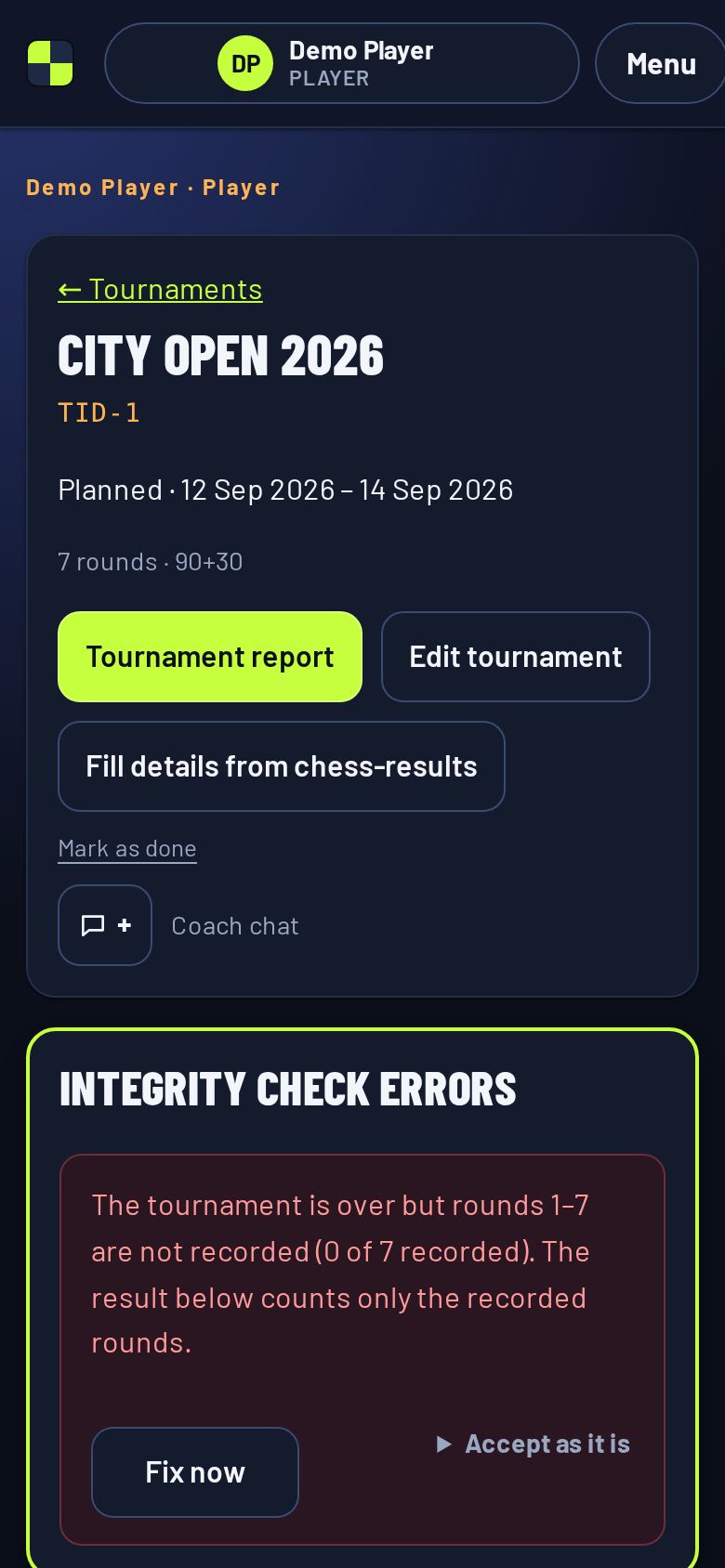
A tournament shows an Integrity check errors box when its records disagree, for example a game that says lost while the round says won, or rounds that are missing. Each problem has a Fix now button that opens the exact place to change it.
Not attending, cancelled, no expenses, mark as done
For: Owners, parents, players
- Not attending or Cancelled by organiser: for a planned or ongoing tournament with no rounds. It moves to Done with that label and is left out of reminders. Back on restores it.
- No expenses for this tournament: tick it when there is nothing to pay. Money reminders stop. It cannot be ticked once an expense exists.
- No PGN available for this round / No more PGNs: tells ChessCareer a round has no game, which clears the "games to attach" reminder.
- Mark as done: closes a tournament in Wrap up whatever is missing. Reopen undoes it.
Entry fee, brochure and paying once
For: Parents, players
Set the Entry fee last date on a tournament so Today can remind you in time.
- Attach the brochure link to the tournament. ChessCareer reads the brochure by itself and finds every payment QR code, UPI ID and payment link it gives.
- Open Pay entry fee. Every option found is shown, each with its QR code or button, with no typing, attaching or confirming.
- Choose I will pay with this one. The other options are hidden so the fee is paid once. If you have not paid yet, Pay a different way brings them back.
- After paying, choose I have paid: add the expense. If there is nothing to pay, choose No entry fee to pay.
ChessCareer does not take payments and cannot prove that a QR code or link belongs to the organiser. Check it with the organiser before you pay. You pay at your own risk. Links are shown with their full address and only plain secure addresses are accepted. Shortened links are refused. If the brochure gives nothing readable, you see Open the brochure instead.
Money: expenses, prizes, income and refunds
For: Parents, players
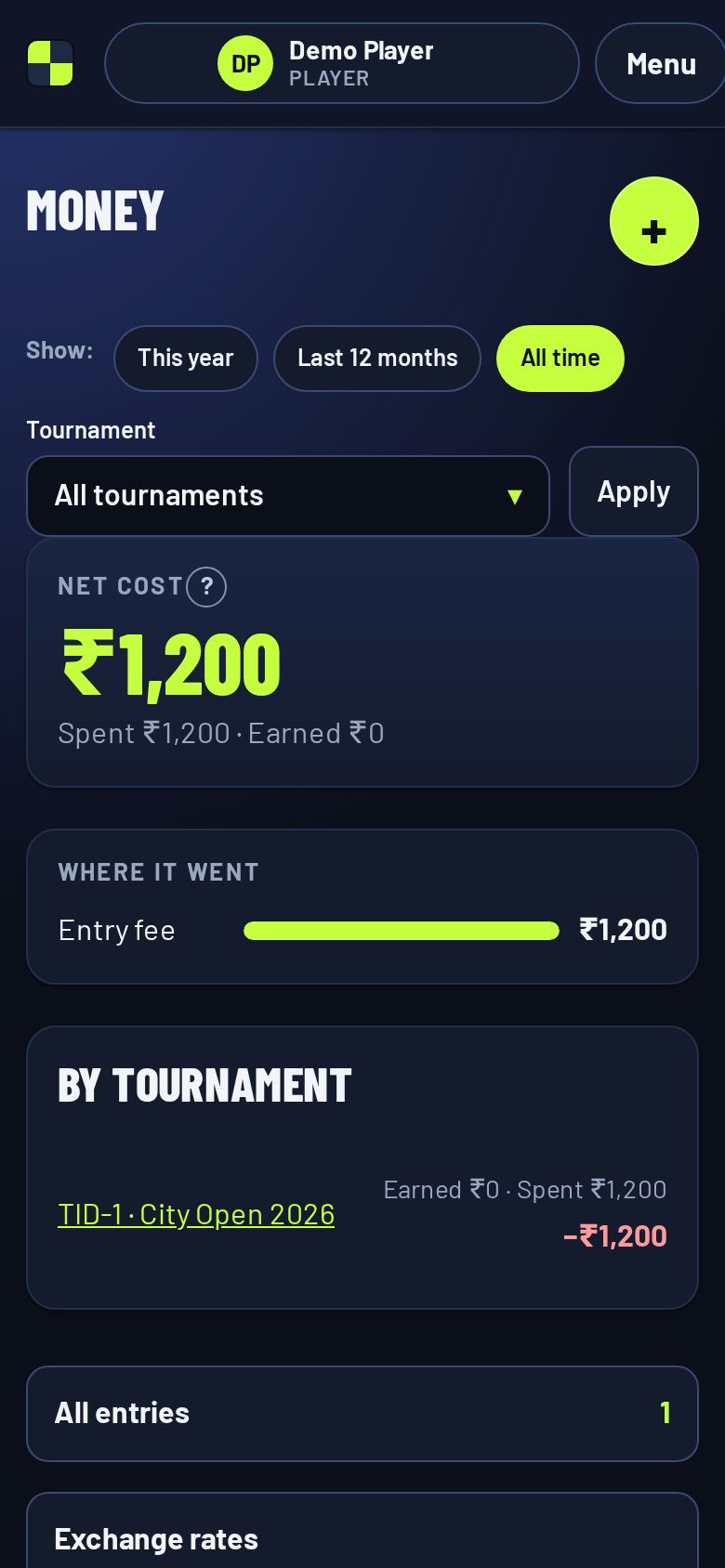
Menu → Money adds everything up for the profile.
- Earned = cash prizes + other income (sponsorship, scholarship or stipend, travel grant, gift, other).
- Spent = amounts paid minus refunds received.
- Net = Earned minus Spent. A refund that is still pending stays counted as spent.
- A prize can be a trophy, shield, medal or certificate as well as cash.
- For an expense on a tournament you did not attend, say whether it cannot be refunded, a refund is pending or a refund was received.
- Money in another currency uses the real rupee amount if you entered it, otherwise the average rate you set for that currency. Records with neither are left out of rupee totals and flagged.
Add an expense with the tournament's Expense action or from the Money page. Receipts are optional.
Photos, documents and files
For: Parents, players
Add files inside a tournament. The attach pop-up has three tabs:
- In ChessCareer: the file is kept in the app (photos and PDFs). A meter shows the space used, up to 2 GB per profile.
- Google Drive: you pick a file in Google's own picker. ChessCareer keeps a link, the name and the type, not the file.
- Link: a web address.
A message under the button says whether it worked. To remove a file choose Delete this file; it is permanently deleted. On Menu → Documents, Free up space or delete several files lets you tick many files and delete them together.
Tournament report as a PDF
For: Parents, players
Every tournament has a report page: a summary, the rounds, awards and cash prizes, expenses by category, prizes minus expenses per currency and the photos and documents. Choose Download PDF for one file with the tables and then all photos on one page with captions, or Print or save as PDF from your browser.
Games and analysis
The Games tab and your game library
For: Everyone
- Every game is one row: both players, the event and date, the result and one action. A small dot shows who had White and who had Black.
- Replay game opens the game on the board.
- The search box looks at opponent names first, then the tournament, opening, date and where it was played. Case and accents are ignored.
- Filters narrow the list (for example over the board or online, or by tournament). They apply as soon as you change them.
- Select games lets you tick games, Select all shown, Remove selected (up to 200 at a time) or export the selected games as a PGN file.
- A game is always in the Games tab. It may also belong to a tournament, and to one round of it.
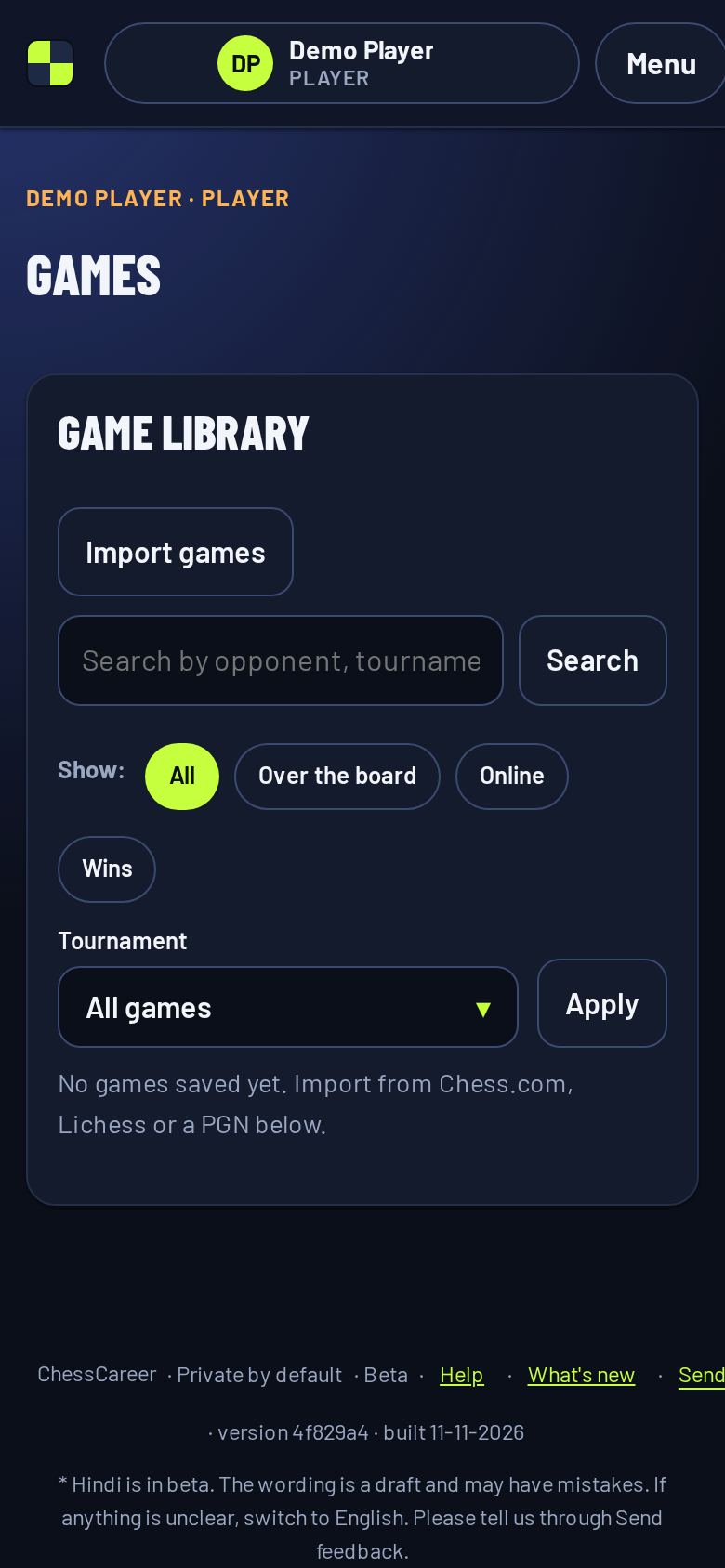
Bring in games
For: Players, parents
Every way of adding games ends in the same safe check for duplicates (see below).
- PGN: paste the text or choose a .pgn file. Attach it to a round from inside the round, or to the tournament's Games box.
- Lichess and Chess.com: Fetch all games. Press it once. ChessCareer first tells you about how many games there are. With more than 50 you choose: the newest games only (50, or the number you type), or all of them. A fetch of all games reads your whole history, a page at a time, newest first, with a count that grows as it goes. Only ordinary classical, rapid and blitz games come in: no bullet, daily or Chess960. It stops at about 5,000 games and shows Load more if there are more. Closing the page loses nothing: the button then says Carry on fetching. You can start a new full fetch once every 12 hours.","Add all. When the fetch ends, the games wait in one card. Add all saves them. A game you already have is not added twice. A game that only looks like one you have asks you first (see duplicates): open its part from the card and choose.
- Lichess broadcasts: with a confirmed FIDE ID, search official broadcast games across all history. Saved games are matched by round and game number.
- chess-results: a button on the Games page fetches the games of your FIDE ID. Lichess is tried first, and a game you already hold is left out.
- Suggestions: ChessCareer may suggest which tournament and round a game belongs to, with its confidence in words. It never links by itself; you confirm.
Fetches show what they are doing. Keep the page open until a fetch ends; if you close it, the games found so far are kept.
When a game looks like one you already have
For: Everyone
If a game looks like one already saved, you see both side by side (In your library and Just fetched), compared one detail per row, with the differences marked. You must choose:
- Keep the one I have: the new one is discarded.
- Use the new one: it replaces the saved game, which keeps its notes, tags, playlists and tournament link. A saved Analyst review of the old moves is removed.
Nothing from that import is saved until every question is answered. A game can be on only one round at a time.
Record a game on the board
For: Players, parents
Use + Record game (always on screen), or Record the game on a board inside a round with no game.
- Say which side you played, the opponent, and optionally the tournament. Inside a round these come from the round.
- Tap a piece, then tap the square. Only legal moves are accepted, for both sides. Promotion asks which piece.
- Use take back, flip board and the move list. You can go back and play a different move: every genuine move, including side lines, is kept.
- Press Finish. The board decides checkmate and stalemate, and you choose any other result. The date defaults to today.
Moves are kept on your device after every move, so a closed tab or lost signal loses nothing, and a finished game is sent when the signal returns. Cancel throws the kept moves away. After saving you can go back to Games or record another.
Review a game with the Analyst
For: Everyone
Open a game and choose Review this game. The Analyst runs on your own device, so your games are not sent to an engine service.
- Every move gets a label: best, good, inaccuracy, mistake or blunder, on Lichess's published scale.
- You get an accuracy score for each side and a graph of the advantage. The graph is never flipped for Black.
- Key moments lists the turning points. Find a better move lets you try again, and a clear button shows the better move on the board.
- Stars are the only reward. See Stars: how you earn them.
- Think longer asks the Analyst to search deeper, only when you ask.
- Wording is Playful or Classic depending on age.
Stars: how you earn them
For: Everyone
Stars are the only reward in ChessCareer. They go up and never down: a rating that falls, or a game or tournament you delete, takes no star away.
You earn stars for:
- Reviewing a game with the Analyst: 1 star for each game, the first time you review it.
- Fixing a mistake with Find a better move: 1 star for each mistake you fix.
- Climbing the starting list in a tournament: 1 star, or 2 stars for 5 places or more.
- A higher FIDE rating (Standard, Rapid or Blitz): 1 star each time a monthly list is higher than the one before.
- A new best online rating: 1 star each time you pass your own highest Chess.com (Rapid, Blitz) or Lichess (Classical, Rapid, Blitz) rating.
- Beating a higher-rated player: 2 stars the first time ever, then 1 star for every win after that.
- A prize or trophy recorded for a tournament: 2 stars for that tournament.
- Tournaments played: 1 star at 10, 2 at 25, 3 at 50, 4 at 100, 5 at 150 and 5 at 200. A cancelled tournament, or one you did not attend, does not count.
Where to see them: the player card on Today shows your total and how many more you need for the next milestone (10, 25, 50, 100, 150, 250, 500, 1000). Progress shows the moments that earned them.
Progress: ratings and results
For: Players, coaches
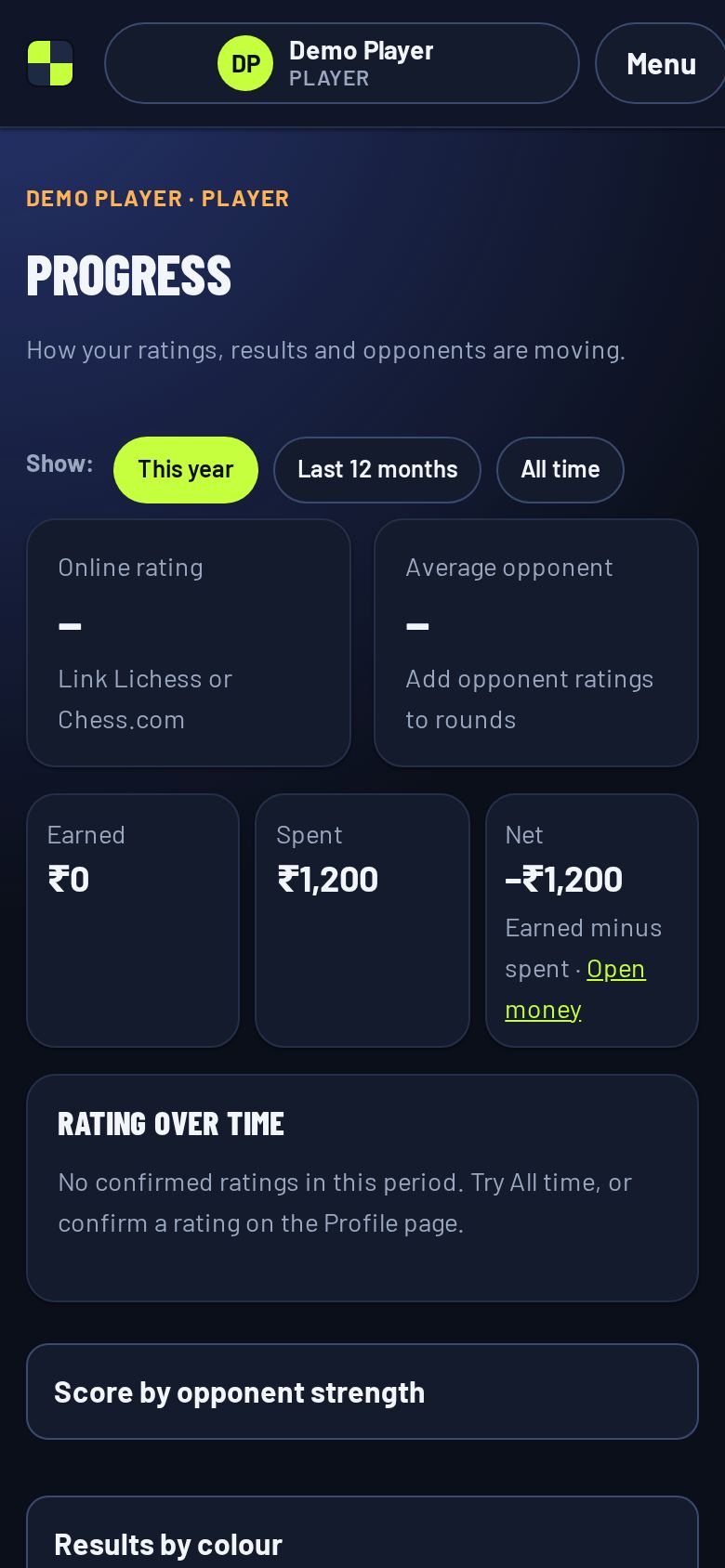
- Ratings, in this order: FIDE Standard, Rapid, Blitz; then Chess.com Rapid, Blitz; then Lichess Classical, Rapid, Blitz. Bullet, daily and every other kind are ignored. The player card shows the first rating that exists: FIDE, else Chess.com, else Lichess, else none. A higher rating earns a star; a lower one never takes one away.
- Refresh ratings reads the official FIDE list; the numbers that come back are shown with Save these ratings and Not now. A rating's date is the day in India it was fetched.
- The performance view shows results by colour and how the player compares with others, with the source of each row shown.
Coaches see Progress. Viewers do not.
Study profiles: follow a public player
For: Everyone
A study profile follows a public player, for example a favourite grandmaster, so you can study their games. It is kept apart from the rest of the app: no money, documents or tournament-ID menus. Games, Tournaments and Profile only.
- Opening explorer: built from the games saved in that study profile, one colour at a time.
- Critical moments: a saved game can be reviewed once with the Analyst and the review is kept.
- Notes and tags on each game, and Playlists to group games in an order you choose.
- Play from a position: pick a game, step to any position and play it out against the Analyst.
- You versus them: your profile and theirs side by side, through the Analyst's eyes.
- Guess the move: replay a saved game and try to find each move the followed player chose.
- Model games: the openings you play, matched with games of the followed player in the same openings.
You cannot follow the same FIDE ID twice in your own account.
Working together
Circle
For: Everyone
Circle is the place for every profile connected to you: your own, your children's, players you coach and study profiles. It has a switcher back to your own profile. Coach chat is pinned at its top when it can be used.
Coach chat
For: Players, parents, coaches
Coach chat holds conversations between one coach and one player. They are meant to be kept and read again later. Either side can start one, and a parent or guardian can read a child's chats.
- Open Circle → Coach chat. A player picks a coach; a coach picks a student.
- Start a conversation about a tournament and round, a game, or in general.
- If a game or round has a PGN, the board appears with the moves. A message can point to a move (for example "Move 23, Bd3"), and tapping it shows that position.
- Every message has small icons: Copy for all, and Edit and Delete on your own. An edited message says edited. A deleted one leaves a grey line.
Numbers on the Menu, Circle, Coach chat and the profile switcher add up what is new inside them. A coach can read only the conversations he or she has with the player; the player and a parent or guardian can read all of them.
Your data and help
Export, delete and restore
For: Owners, parents, players
- Menu → Export data gives you a copy of your records. PGN export is also on the Games tab.
- Delete a tournament or a profile: the delete button opens a page that lists in plain words what goes with it. A tournament needs a tick, and a second tick can keep its games in your library. A profile also needs its name typed.
- Menu → Recently deleted: deleted things wait here for 30 days and can be restored. After that they are erased automatically, or choose Erase now.
- Database backups keep erased data for up to 30 days more.
- To delete your whole account, or a child's data, email the address on the Privacy Policy from the email account you signed in with.
Send feedback, report a problem, what's new
For: Everyone
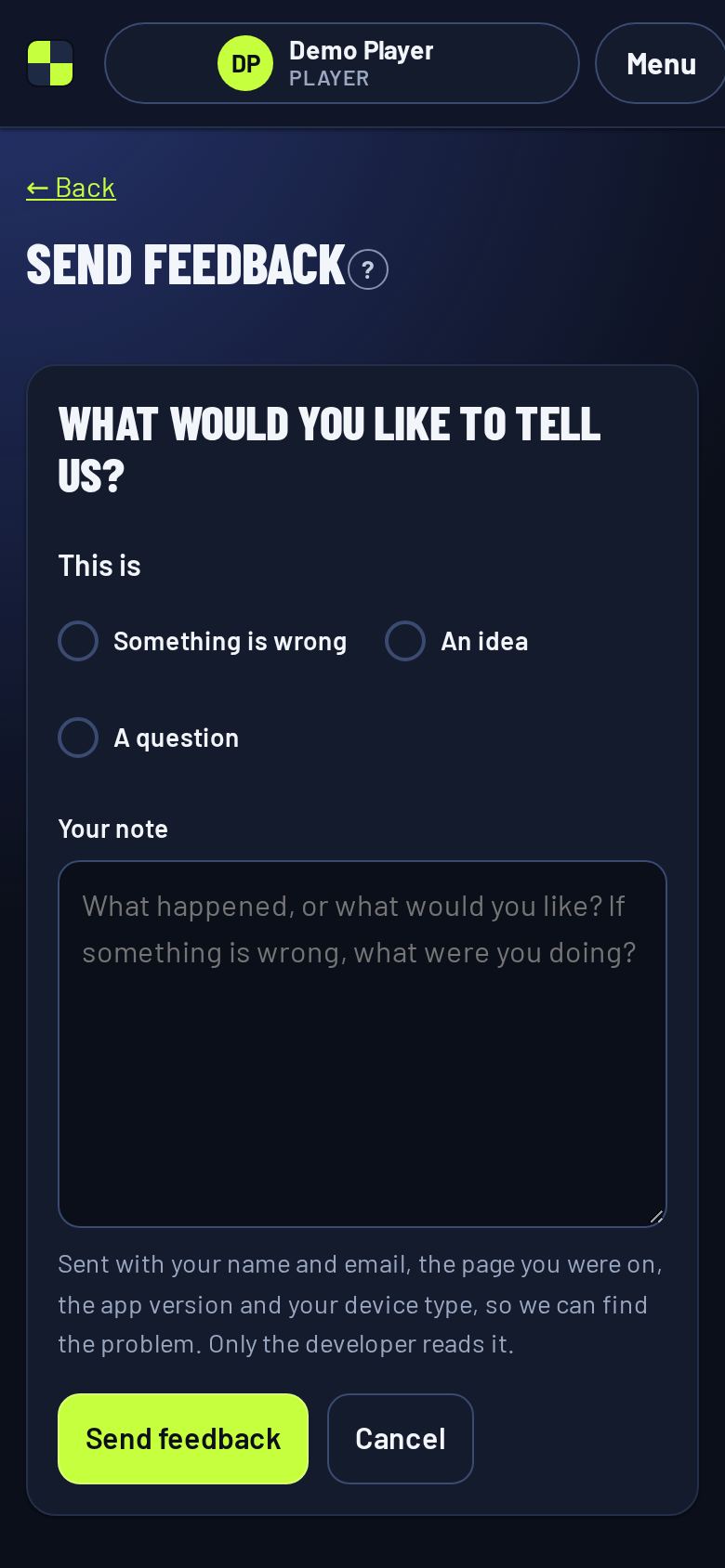
- Menu → Send feedback: report something wrong, share an idea or ask a question. The page, the app version and your device type are added for you.
- Report this problem: every red [!] message has this link. Each tap is its own report.
- Help guide (Menu and footer) is this guide. It is open to everyone, also before signing in.
- What's new (Menu and footer) lists what changed in plain words.
- Licences (footer) credits the free software and data ChessCareer uses.
A small [?] beside a label opens a longer explanation. A red line with [!] is an error; tap the [!] for the reason.
If you cannot sign in, you cannot open Send feedback. Email the address on the Privacy Policy page instead (nshevade@gmail.com).
Privacy and safety in plain words
For: Everyone
- Profiles are private by default. Only the people you invite can see them, and only what their role allows.
- ChessCareer shows no advertising, uses no analytics or advertising trackers and does not sell your information.
- For a child it keeps a name, an optional year of birth and the chess records. Nobody under 18 should use it without a parent's or guardian's consent.
- ChessCareer does not take payments and never asks for card or bank account numbers.
- Files are kept in a private store and opened only through links that expire within minutes.
Read the full Privacy Policy and Terms of Service.
If something goes wrong
For: Everyone
| What you see | What to do |
|---|---|
| A page says it needs a reload | A new version came out while the page was open. Reload it. |
| Nothing saves and the device is offline | Items recorded on the day are kept on the device and sent later. Check Recorded so far. |
| The brochure could not be read | Press Read it again. If it still fails, use Open the brochure and pay from the organiser's own page. Then use Report this problem. |
| A FIDE ID does not match | The name or birth year on the FIDE page differs from the profile. Check the ID; only if you are sure, tick Use it anyway. |
| A chess-results import is refused | The FIDE ID on that entry does not match the profile. The mismatch is shown. |
| A game says it is a possible duplicate | Compare the two and choose. Nothing is saved until you do. |
| A fetch is slow | Fetches from other sites can take a while. A progress bar shows the work. Keep the page open. |
| I cannot see Money, Documents or Progress | Your role does not include them. Coaches and Viewers see less. Ask the owner. |
| I cannot sign in | Pick the same email account you used before. Try again after a few minutes, or on another browser. Send feedback needs you to be signed in, so it cannot help here. Email the address on the Privacy Policy page (nshevade@gmail.com) and say what you see on the screen. |
| Hindi wording is unclear | Hindi is a beta draft. Switch to English in the Menu. |
| Something else | Menu → Send feedback, or Report this problem on the red [!] line. |
Words used in ChessCareer
For: Everyone
- TID
- The number of a tournament on one profile, such as TID-15. Each profile counts from 1.
- FIDE ID
- The player's number at the world chess federation. It is used to fetch ratings and games.
- AICF
- The All India Chess Federation. Its calendar feeds Find tournaments.
- chess-results
- A public site with tournament pairings and results. ChessCareer can read a tournament and your games from it.
- PGN
- The standard text format for chess games.
- Analyst
- ChessCareer's chess engine. It runs on your device when you ask for a review.
- Classical, rapid, blitz
- The three paces kept in ChessCareer. "Standard" and "classical" mean the same thing.
- Circle
- The place for all profiles connected to you.
- Study profile
- A profile that follows a public player so you can study their games.
- Things to fix
- The single list of what needs attention on a profile.
- Beta
- ChessCareer works and is still changing.